
Swipe to clean
Keep the memories.
Let go of the clutter.
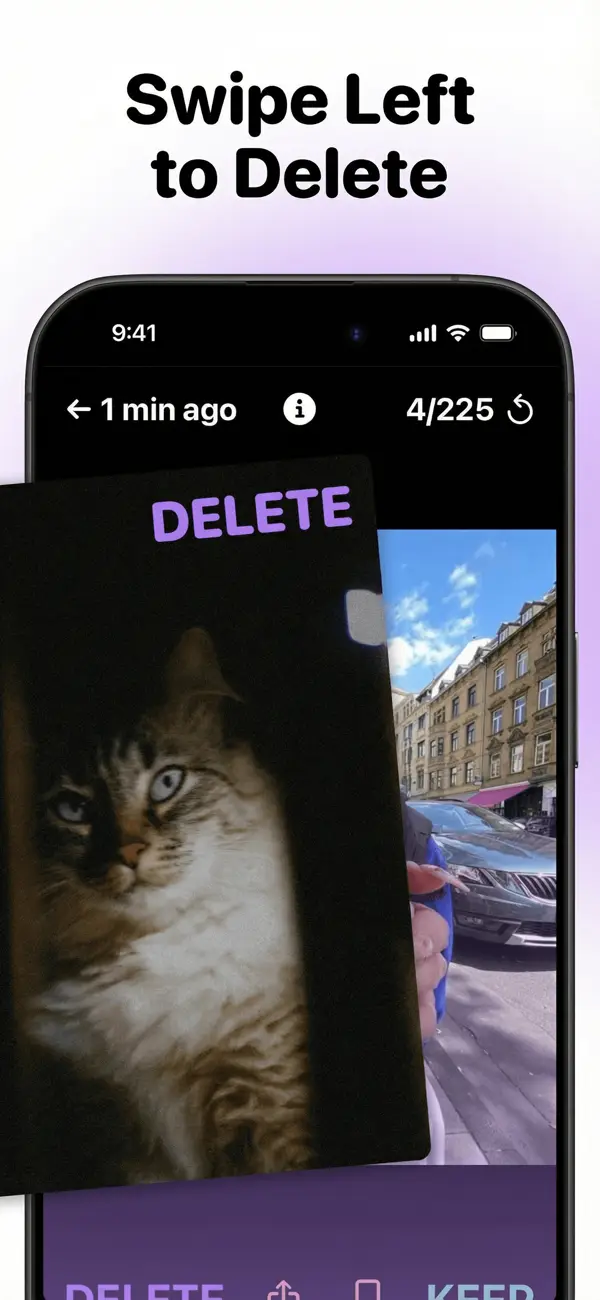
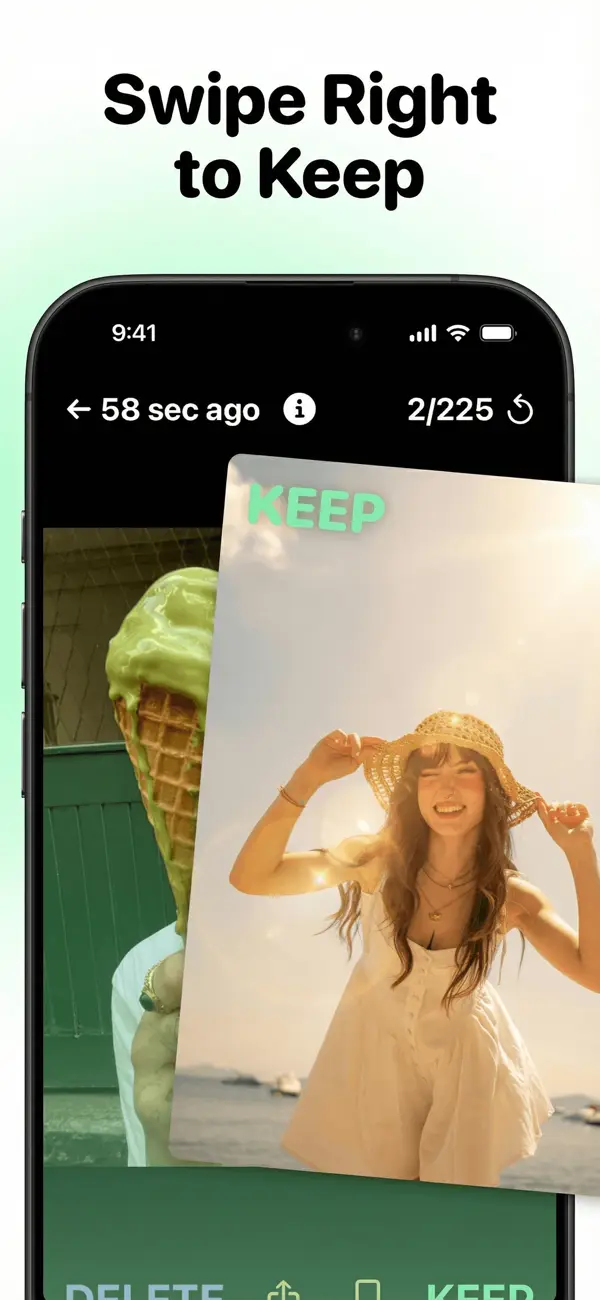
Right to keep. Left to delete. Turn a camera roll full of photos and videos into a collection you love looking back on.


Delete
Keep
A lighter camera roll, step by step
No need to tackle everything at once. Start with a list, make your choices and take a break whenever you like.
Open a list
Pick Recents, last month or a favorite trip. Your photos and videos are ready to sort.
Make your choice
Swipe right to keep, left to mark for deletion. Tap the undo button or the photo to go back.
Review and confirm
Check the photos marked for deletion, change any choice, then confirm what you want to remove.
Come back anytime
Your progress is saved. Pick up where you stopped and watch finished months get crossed off.
Your library, your way
Find your starting point.
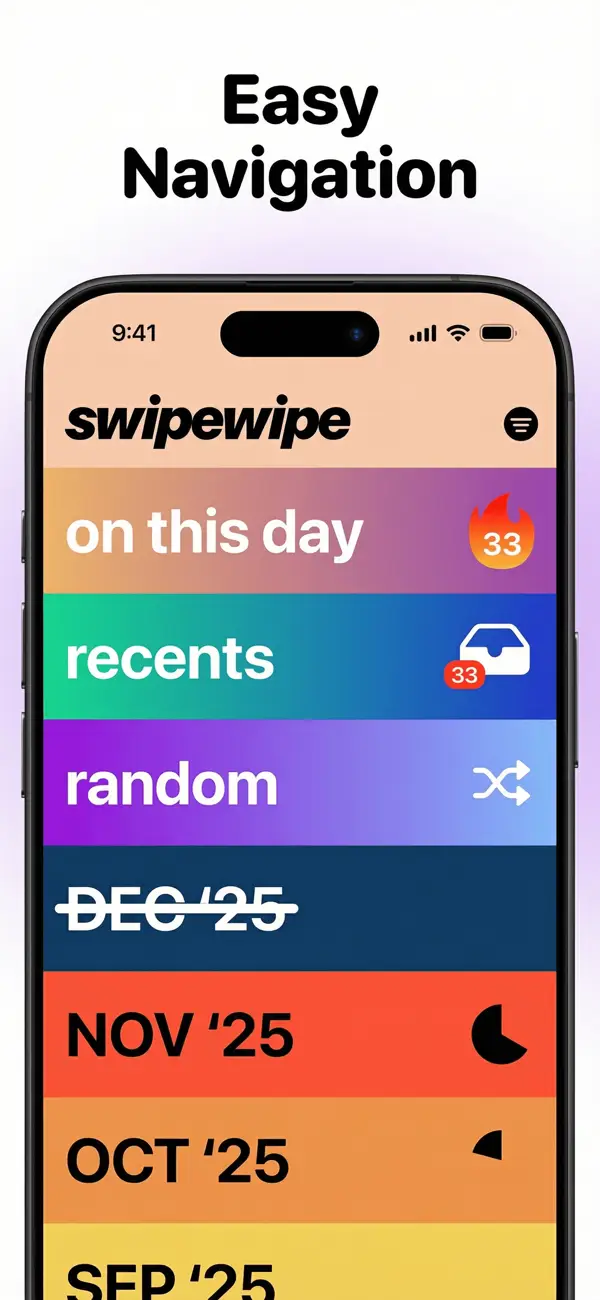
Last month’s photos or a few forgotten favorites? Choose the part of your camera roll you feel like sorting today.
- Month by month
- Start with last month or revisit an older one. Finished months are crossed out.
- Recents
- Your latest photos and videos, including the current month.
- On This Day
- Photos taken on this date in past years. Rediscover a memory while you sort.
- Random
- A random selection of photos when you feel like mixing things up.
- Duplicates
- Identical and near-identical photos grouped together. Keep your favorite shot.
- Albums
- Work through your albums and folders, one collection at a time.
You have the final say
Review first.
Delete when you’re ready.
A left swipe only marks a photo. Nothing is removed until you confirm your selection on the review screen.
Changed your mind? Tap a photo to change your choice. Open the review at the end of a list, or earlier using the trash button when available.
Questions about deleting photos?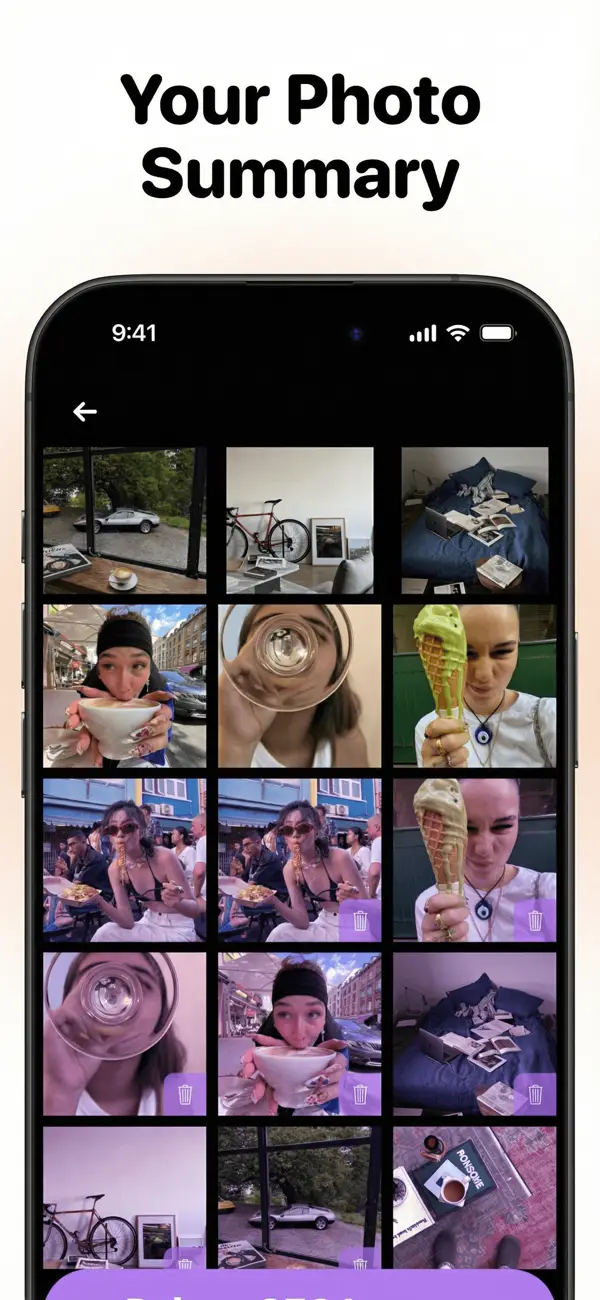
Small swipes add up
See your cleanup pay off.
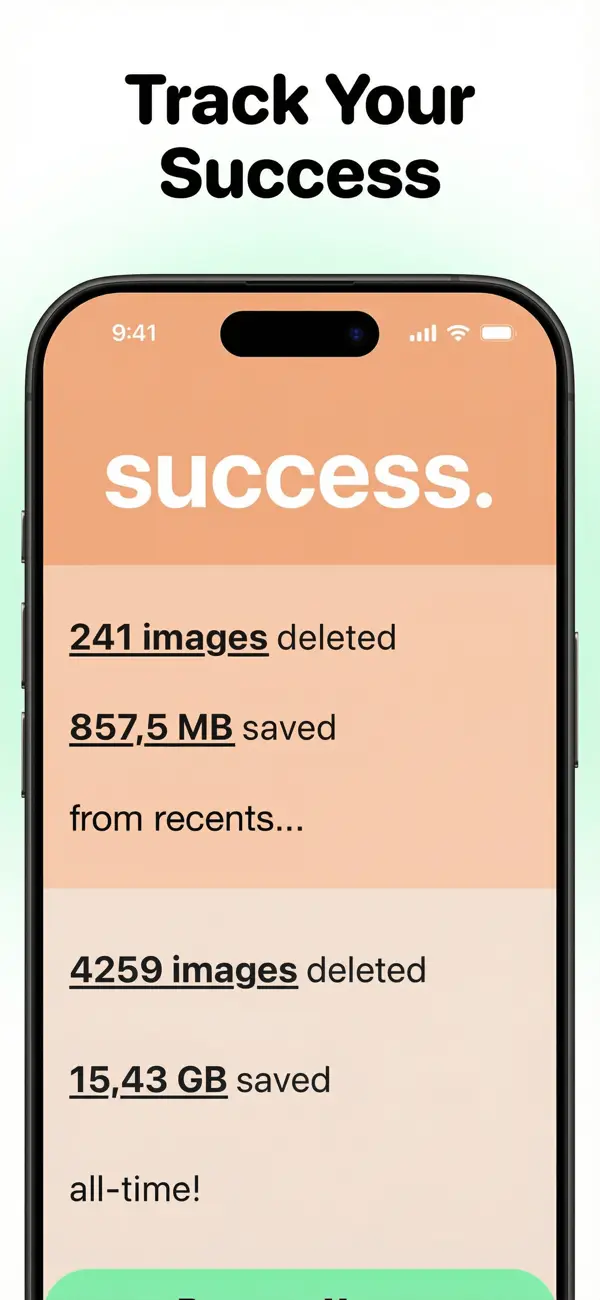
Photos sorted. Clutter cleared. Space saved. After each deletion, see what you’ve accomplished and track your progress in your stats.
Every completed month is crossed off your list. Come back for the next one whenever you’re ready.
Questions & answers
A few things worth knowing
Why are my photos not deleted when I swipe left?
Swiping left only marks a photo. The marked photos are deleted when you confirm on the review screen, which opens at the end of the list. You can also open it earlier with the trash button when available.
Does Swipewipe work with videos and screenshots?
Yes. Swipewipe goes through everything in your camera roll: photos, videos and screenshots.
Can I undo a swipe?
Yes. Tap the undo button, or tap the photo, to go back while swiping. You can also change any choice on the review screen before confirming.
Can I recover a photo deleted with Swipewipe?
On iPhone, deleted photos stay in Recently Deleted for 30 days. See iPhone recovery steps. If you use iCloud Photos, deletion also syncs to your other devices. On Android, deletion is final on your phone, but a copy backed up in Google Photos stays intact. Check Android recovery options.
Is Swipewipe free?
Swipewipe is free to download and use, with ads and a limited number of swipes before a countdown. A subscription removes the ads and the limits. See the help page for subscription questions.